
Kling 2.6 Motion Control - Copy Any Video Action for Free
Create professional AI videos with Kling 2.6 Motion Control. Accurately copy actions from reference videos to your images. Features customizable character orientation, original sound retention, and high-fidelity motion transfer.
The character actions in the generated video are consistent with the reference video. Supports .mp4/.mov, 3.5-30 seconds duration depending on Character Orientation.
[Controls character's orientation. 'image': same orientation as the person in the picture (max 10s video). 'video': consistent with the orientation of the characters in the video (max 30s video).]
Whether to keep the original sound of the video.
Kling 2.6 Motion Control Use Cases
Copy Intricate Hand Gestures with Precision
Experience the high-fidelity detail of Kling 2.6. Our AI accurately copies subtle finger articulations and hand movements from your reference video, ensuring fluid and natural results without common AI distortion.

Sync Full-Body Action Perfectly for Free
Achieve professional motion transfer without the cost. Kling Motion Control ensures your character's posture, limb movements, and orientation mirror the reference video exactly, creating a coherent full-body performance.
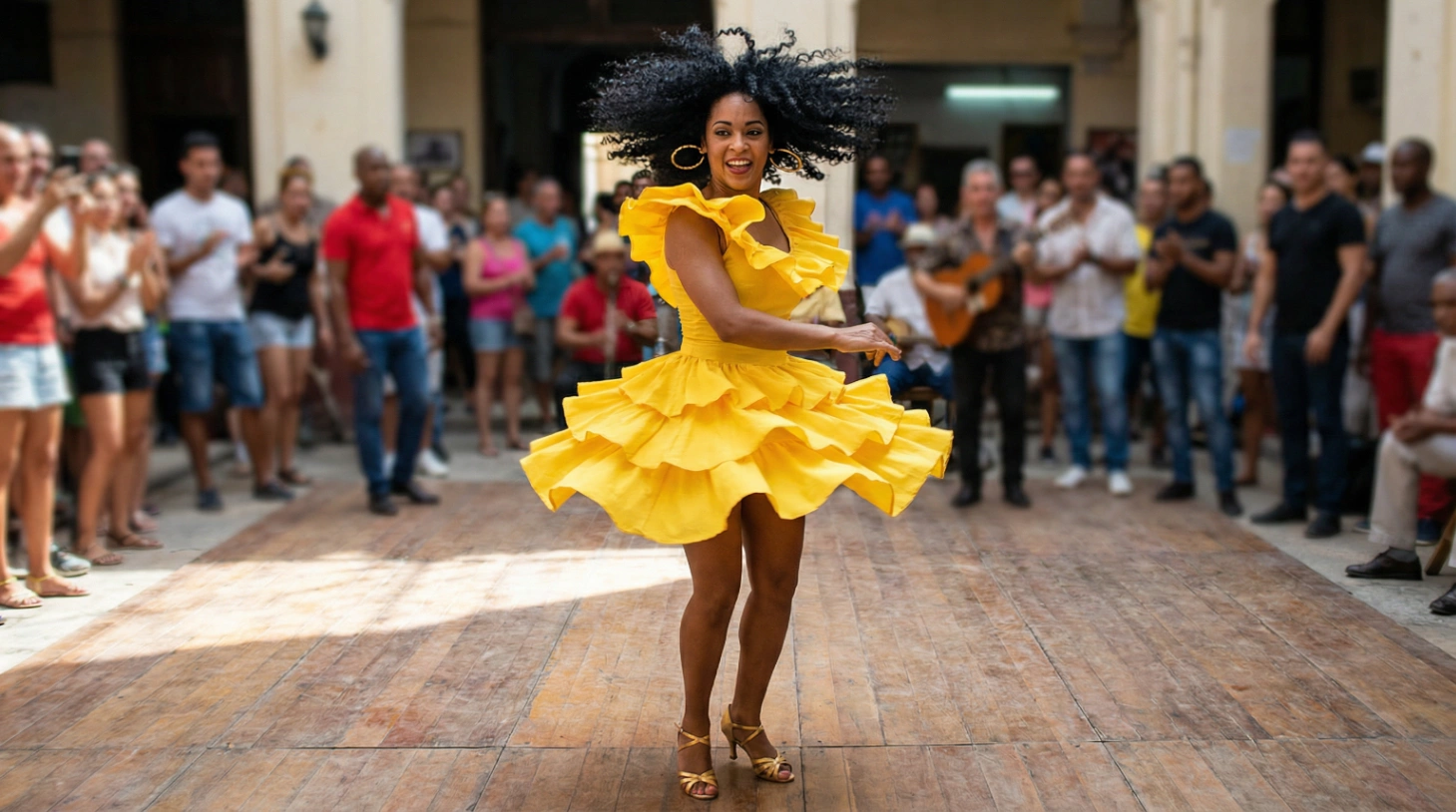
Replicate Complex & Dynamic Movements
From martial arts to fast-paced sports, copy any video action regardless of complexity. The Kling 2.6 engine handles challenging sequences with ease, preserving physics and realism where other models fail.
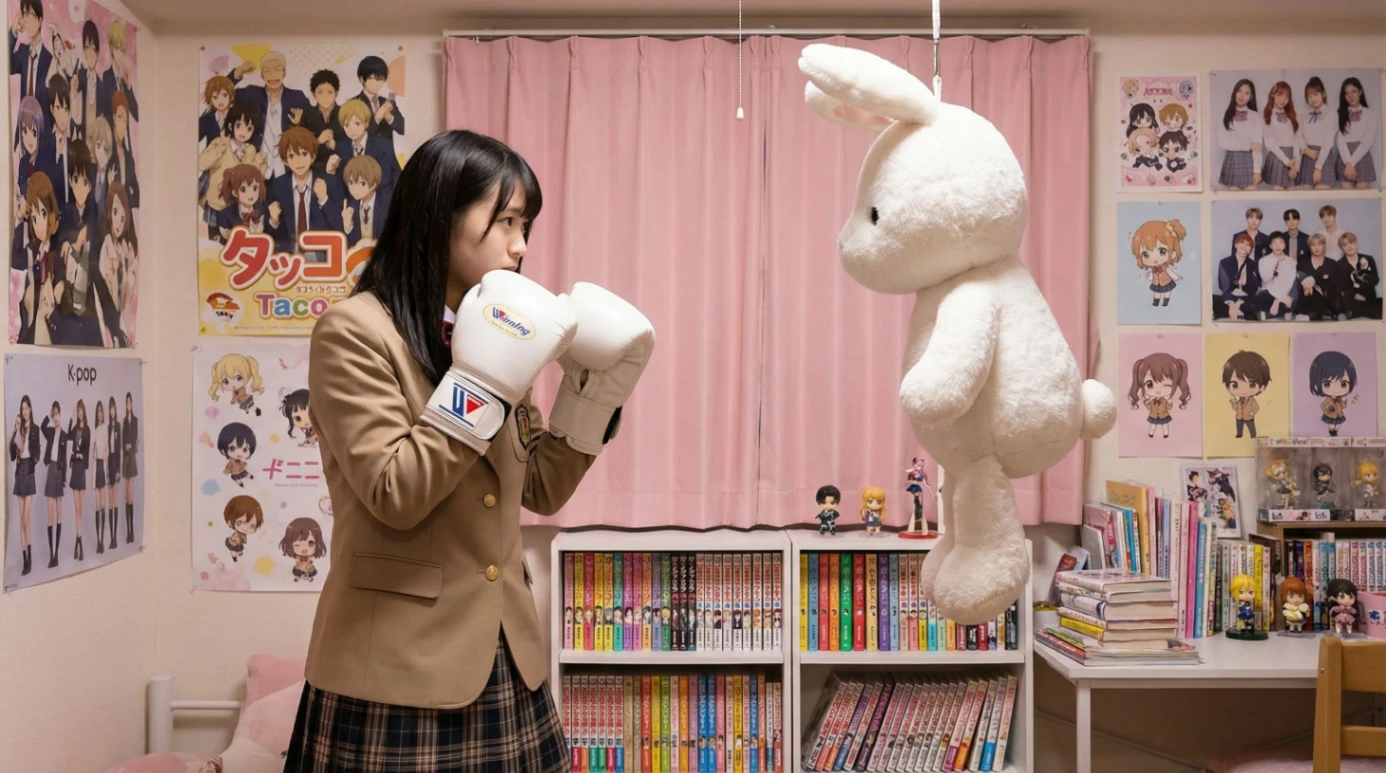
Customize Scenes with Text & Motion
Combine the power of Motion Control with creative text prompts. While copying the action trajectory, use text to modify backgrounds and elements, blending your character seamlessly into new environments.
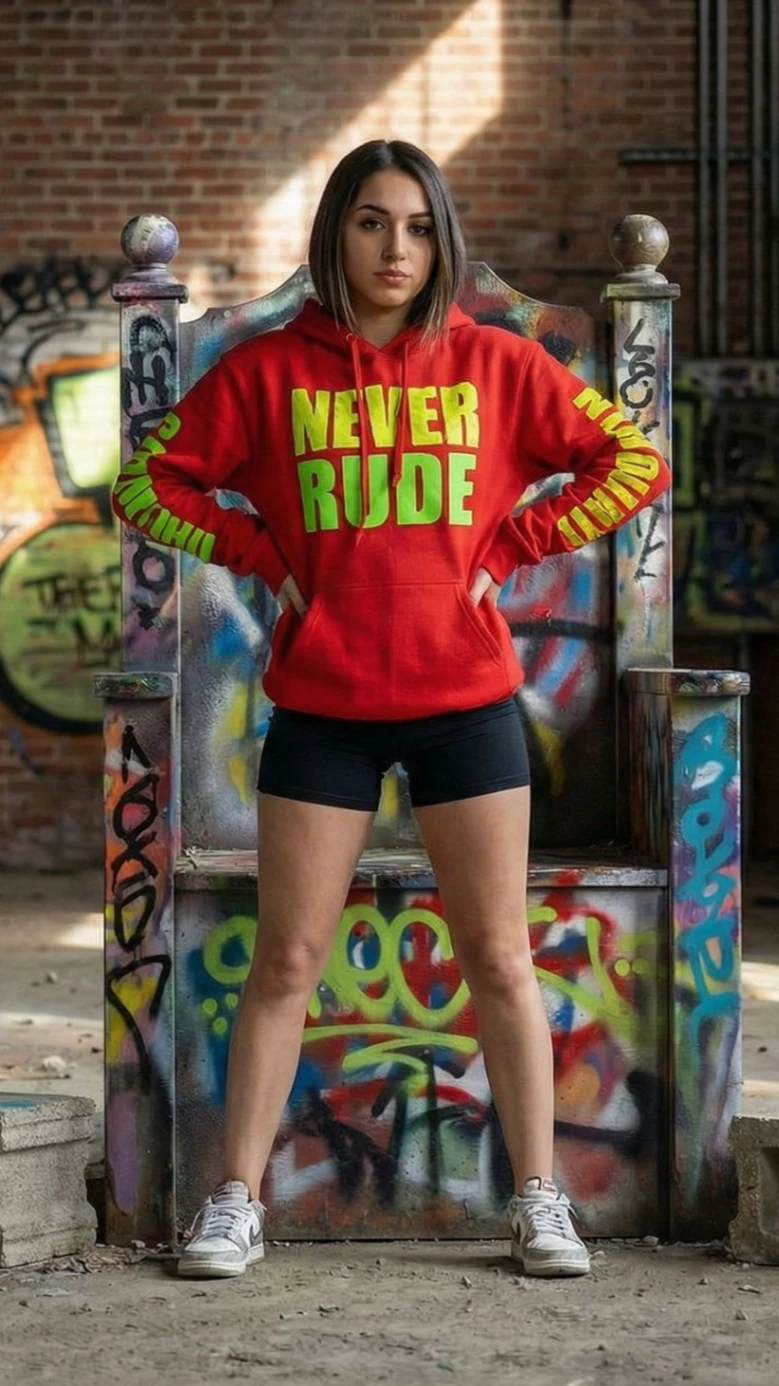
Precise Action Copying
Directly translate complex movements from reality to AI. Whether it's a 3.5-second dance clip or a martial arts move, our engine analyzes the skeletal structure of your reference video and applies it strictly to your uploaded character.
Smart Orientation Control
Master the camera perspective. Choose 'Image Orientation' to keep your character's original framing (perfect for short 10s clips), or switch to 'Video Orientation' to replicate the dynamic camera movements of the reference footage (up to 30s).
Audio-Visual Sync
Don't lose the beat. With the 'Keep Original Sound' feature, your generated video retains the audio track from the reference, ensuring that dance moves or lip movements align perfectly with the original rhythm.
Full-Body Dynamics
Optimized for full-body and half-body shots. The Kling 2.6 model is trained to handle visible backgrounds and complex limb articulations, avoiding the distortion common in headshot-only animations.
Dual Quality Modes
Balance speed and detail. Select 'Standard' (std) for quick iterations and testing, or upgrade to 'Pro' mode when you need broadcast-ready resolution and texture fidelity for your final masterpiece.
Hybrid Creative Control
Combine video references with text prompts. While the video dictates the action, use the text prompt input to add new screen elements, change the weather, or stylize the environment, giving you dual-layer control.