
How to Use Kling 3.0 Motion Control: The 2026 Master Guide
Last Updated: July 29, 2026
Author: Motion Control AI Team
Introduction
In the evolving landscape of 2026, generative video has shifted from random experimentation to precise direction. For creators, the challenge is no longer just creating a video; it is controlling it.
If you have struggled with AI characters changing faces mid-movement or ignoring your physics constraints, Kling 3.0 Motion Control is the solution. Available directly on Motion Control AI, this tool leverages the photorealistic Kling 3.0 video model to fuse static character consistency with complex video performance.
This guide explores how to master the "Image-to-Video" workflow, ensuring your outputs meet professional standards for marketing, storytelling, and social media.
Why Kling 3.0 Motion Control Stands Out in 2026
Before diving into the "How-to", it is crucial to understand why professionals are switching to the Kling 3.0 AI Motion Control architecture featured on our platform.
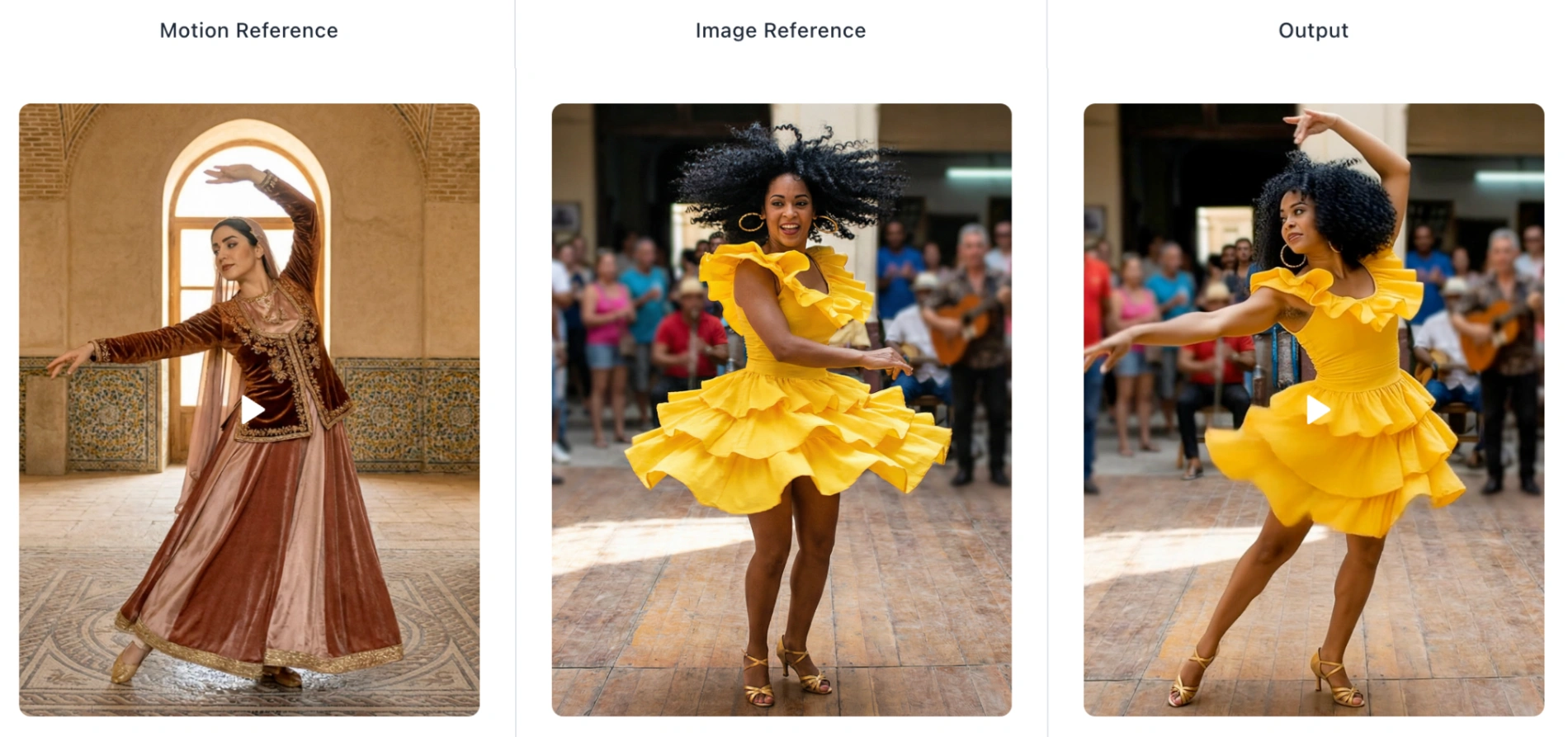
- Superior Character Consistency: Unlike older models that often morphed faces during movement, Kling 3.0 model locks onto the subject's identity. Your character’s attire and features remain consistent, which is essential for brand storytelling.
- Physically Accurate Rendering: Motion Control AI doesn't just animate; it simulates. From fluid textures to realistic lighting, the output approaches the fidelity of high-end CGI, significantly reducing production time compared to traditional rendering.
- Precise Motion Trajectories: You are not limited to random animations. You dictate the path. Whether it’s a specific dance move or a martial arts kick, the model follows your reference video with high fidelity.
Transform static characters into realistic AI video with frame-accurate control
Phase 1: Preparation & Best Practices (Crucial)
Based on our extensive testing at Kling Motion Control AI, the vast majority of visual anomalies stem from mismatched inputs between source files. Before generating, apply these three rules from our Best Guide:
1. The "Framing Match" Rule
Consistency is key. If your source image is a half-body shot (waist up), your motion reference video must also be a half-body shot.
- Why? If you use a full-body walking video with a close-up portrait, the Kling AI attempts to "compress" the skeleton, leading to distortion.
2. Ensure Spatial Clearance
Leave room to move. If your motion reference involves wide arm movements (e.g., a T-pose or waving), ensure your source image has ample background space.
- Tip: Avoid cropping your source character too tightly. The Motion Control AI needs "canvas" to generate the moving limbs without clipping them out of existence.
3. Optimized Motion References
Select reference videos with clear movements but moderate speed. While Kling AI Motion Control handles complex action well, videos with extreme motion blur or erratic camera shaking can reduce tracking accuracy. Prioritize videos where the subject remains relatively centered.
Phase 2: Step-by-Step Workflow
Follow this 3-step process on Motion Control AI to create your Kling 3.0 Motion Control video.
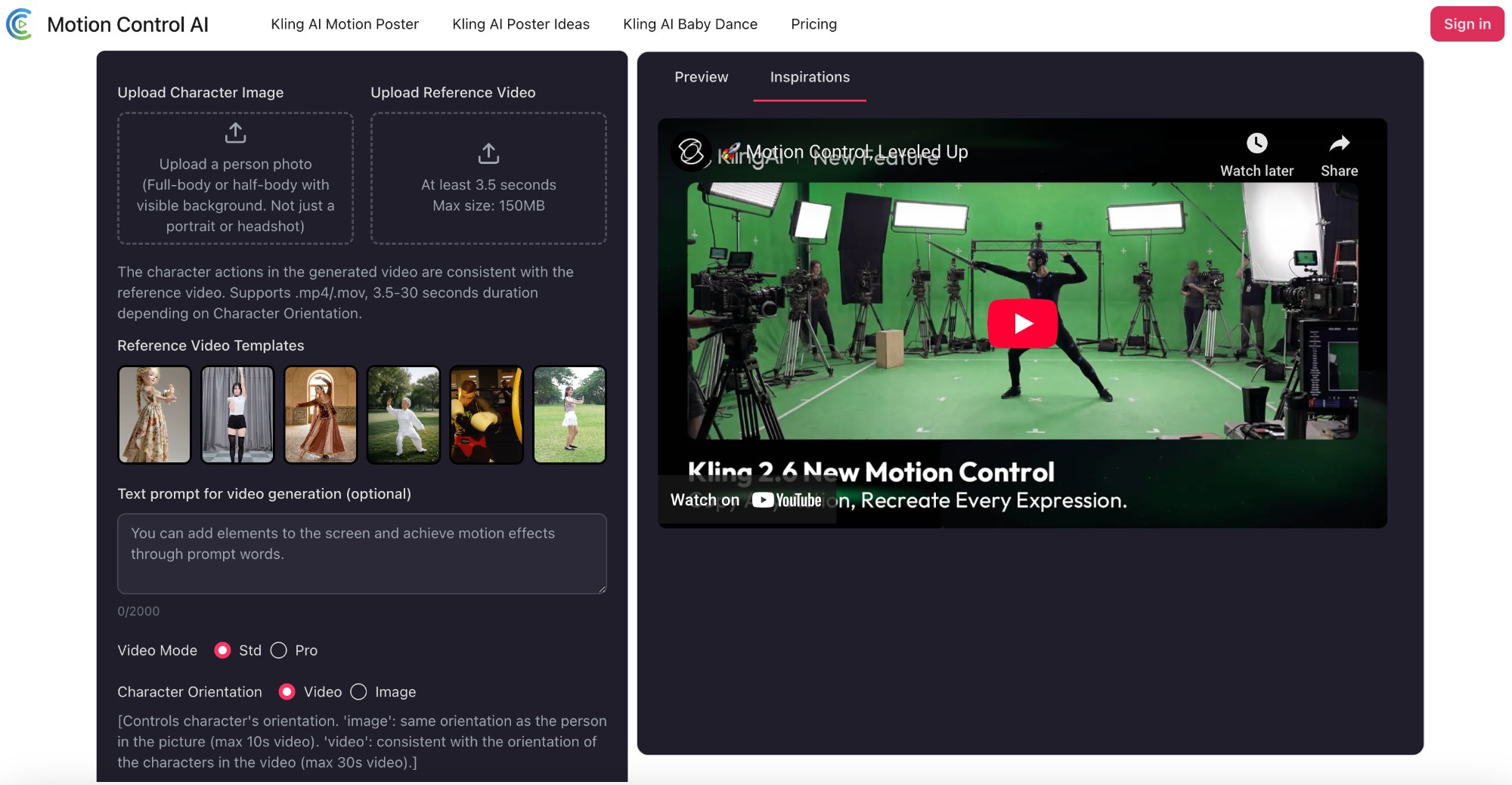
Step 1: Upload Your Assets
Navigate to the Motion Control AI Video generator: motioncontrolai.com.
- Reference Image: Upload the high-res photo of your character (JPG/PNG/WEBP). Full-body or half-body with visible background. Not just a portrait or headshot.
- Motion Reference: Upload the video clip that defines the movement.
The character actions in the generated video are consistent with the reference video. Supports .mp4/.mov, 3.5-30 seconds duration depending on Character Orientation.
Note: The engine will use the skeleton from the video to drive the image.
Step 2: Refine with Text Prompts
While the video dictates movement, the text prompt dictates context.
- Optional but Recommended: Use the Text prompt field to define the atmosphere or add elements.
- Advanced Feature: Camera Control
By default, the AI follows the video's camera. To add your own cinematic moves (like Zoom In or Pan), check the "Character Orientation Matches Image" setting. This allows independent camera movement via text prompts. - Example Prompt: "Cinematic lighting, neon rainy street background, 8k resolution, photorealistic."
Pro Tip: You can specify facial expressions here, such as "the character smiles", to layer micro-expressions on top of the physical movement.
Step 3: Generate & Iterate
Select Generate.
- Generate: Click 'Generate' to power the Kling 3.0 engine. Within moments, preview your dynamic AI video.
- Result: Preview the video. If satisfied with the trajectory and consistency, download the high-resolution MP4.
Advanced Troubleshooting: Common Issues & Fixes
Even in 2026, AI tools require guidance. Here is how to fix common problems about Kling 3.0 Motion Control:
- Issue: The background looks warped.
- Fix: This happens when the Kling AI 3.0 tries to move the camera too aggressively. In your settings or prompt, try to stabilize the scene description (e.g., "static background").
- Issue: The hands look unnatural.
- Fix: Ensure the hands are clearly visible in both the source image and the reference video. If the reference video hides hands in pockets, the Motion Control AI may struggle to render them later.
FAQ: Understanding Kling 3.0 Motion Control
Q: Why does Kling 3.0 Motion Control sometimes generate a shorter video than my reference video (e.g., 30s input produces only 8s output)?
A: This is expected behavior documented by Kling. The model does not blindly copy the full duration of the reference video. Instead, it intelligently extracts only the valid continuous motion segments. If the actions are overly complex, too fast, contain cuts, camera movements, or erratic motion, Kling automatically truncates to the usable portions. The minimum extractable continuous action is 3 seconds. Credits are not refunded in these cases. To minimize shortening, use single continuous shots with moderate, stable movements and avoid fast or chaotic actions.
Q: Is the generated video suitable for commercial use?
A: Yes. Kling Motion Control Videos generated via our premium plans include commercial rights, making them ideal for social media ads, e-commerce showcases, and film pre-visualization.
Q: Why is this Kling 3.0 tutorial different from standard AI video generation?
A: Standard tools "guess" the motion from a text prompt (e.g., "make him run"). Kling 3.0 Motion Control forces the AI to follow a specific video skeleton, granting you frame-by-frame authority over the performance.
Q: Can I control specific facial expressions using Kling 3.0 Motion Control?
A: Absolutely. By combining the motion reference with specific text prompts (e.g., "looking surprised"), you can animate detailed facial micro-expressions while keeping the character's identity recognizable.
Conclusion
Kling 3.0 Motion Control represents a leap forward in controlled video generation. By adhering to the framing rules and utilizing the dual-input system (Image + Video), creators can now produce broadcast-ready content that was not possible before 2026.
Ready to direct your first Kling 3.0 Motion Control AI masterpiece?
No complex setup required. Create broadcast-ready AI videos in seconds